
Guide 2026
How to Use Seedance 2.5 (2026): Complete Step-by-Step AI Video Guide
Seedance 2.5 makes AI video generation easier for creators who want complete, production-ready clips from either natural language prompts or reference images. This guide shows how to prepare assets, write better prompts, use references, avoid common mistakes, and refine a first draft into a stronger final video.
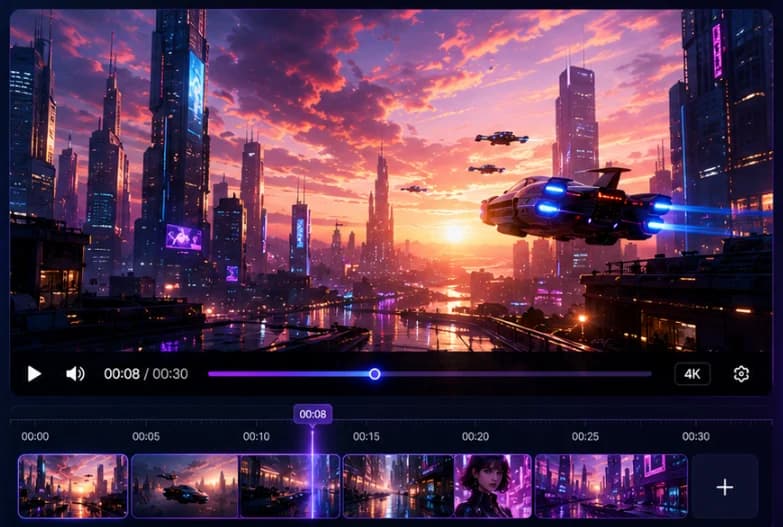
Quick Answer
To use Seedance 2.5, define the video goal, choose text-to-video or image-to-video, prepare references, write a structured prompt, generate a first draft, and refine the result with targeted edits.
Who Is This Guide For?
Use this guide if you are:
- Beginners using Seedance 2.5 for the first time
- Marketers creating product ads or social videos
- Designers turning still images into motion
- Filmmakers testing AI previsualization
- Creators who need more consistent characters, products, and styles
What you will learn
- How text-to-video works
- How image-to-video works
- How to prepare references
- How to write stronger prompts
- How to avoid common beginner mistakes
- How to refine results without restarting
Before You Start
Strong Seedance 2.5 results usually come from preparation, not from typing a longer prompt after the first output fails. Start with a goal, a format, a clean reference set, and a repeatable prompt structure.
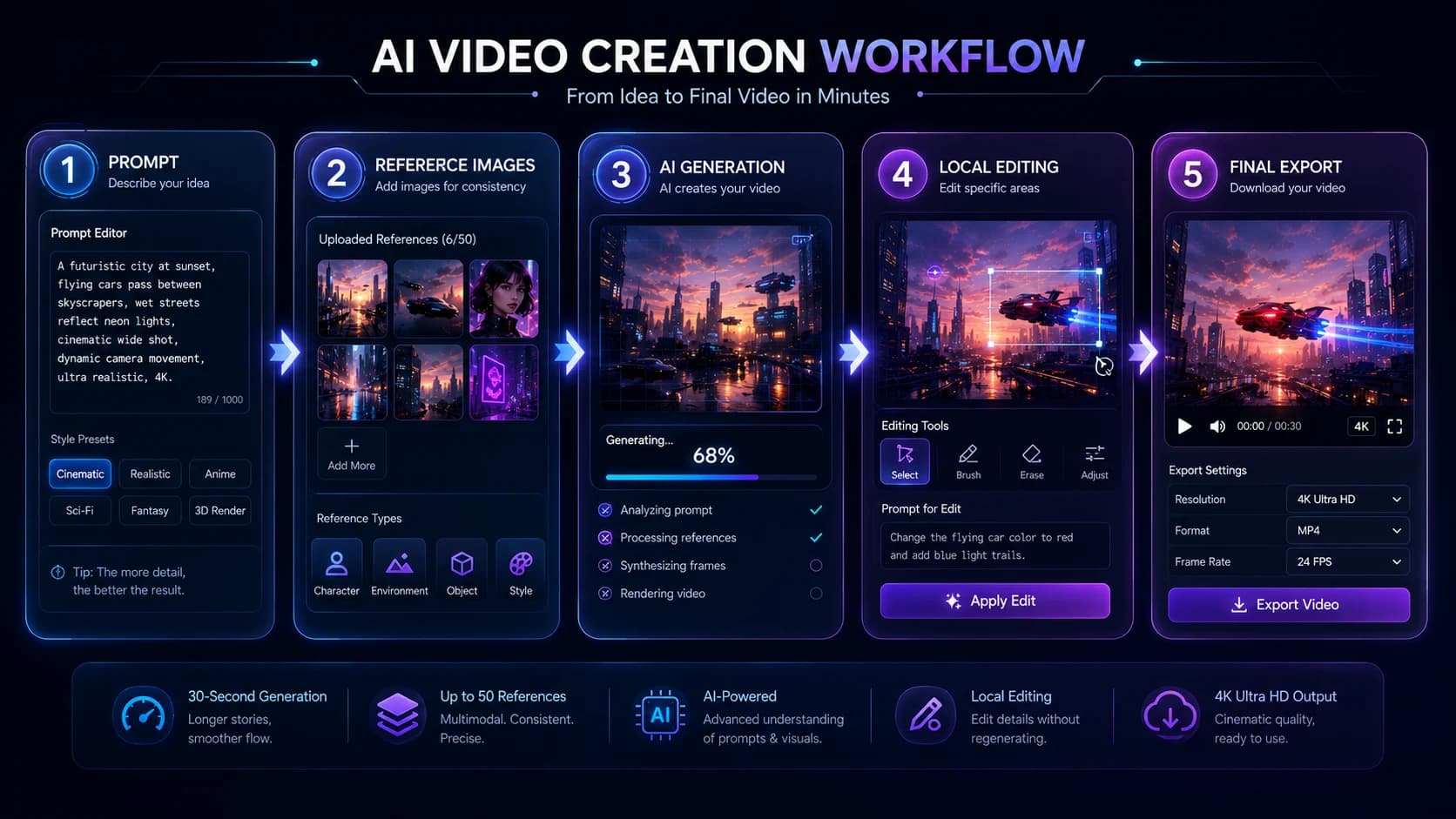
- Step 1
Decide your final goal
Choose whether the clip is a product ad, social post, concept trailer, portrait animation, ecommerce visual, or cinematic scene before writing a prompt.
- Step 2
Prepare reference images
Use clear, high-resolution images with consistent lighting. References help Seedance 2.5 preserve identity, product details, style, and composition.
- Step 3
Choose the right aspect ratio
Use 16:9 for YouTube and websites, 9:16 for short-form video, and 1:1 for square social placements.
- Step 4
Learn the prompt formula
A useful prompt moves through subject, environment, action, camera, lighting, mood, and quality instead of relying on random keywords.
Choose the right aspect ratio
Learn the prompt formula
Subject
Environment
Action
Camera
Lighting
Mood
Quality
This format gives the model a clear sequence of instructions instead of a random collection of descriptive words.
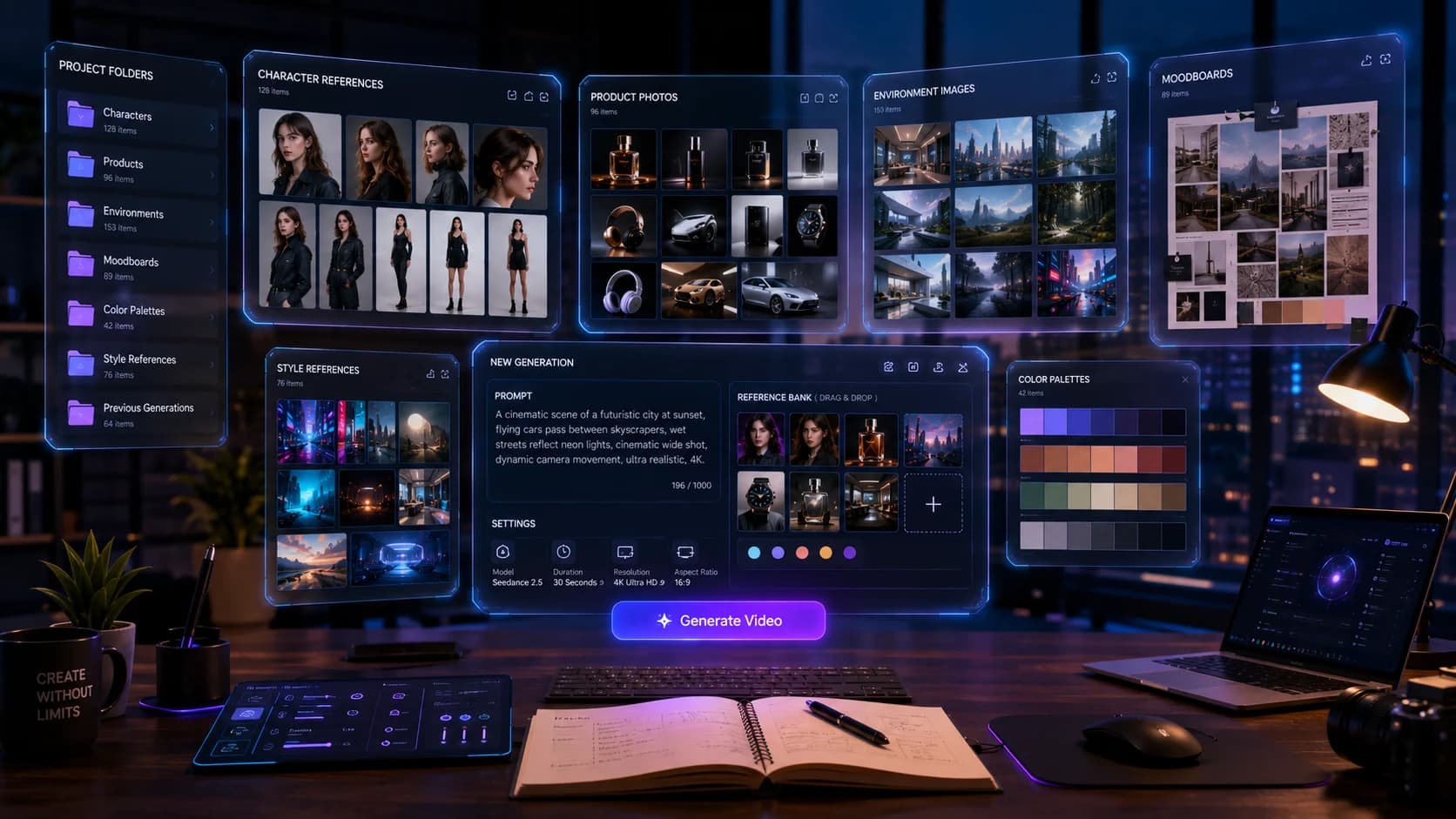
Organize your assets
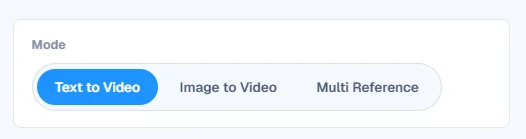
Method 1: Create Videos with Text-to-Video
Text-to-Video is the most common workflow in Seedance 2.5. Instead of uploading an existing video, you describe the idea in natural language and the model generates a complete animated scene from your prompt. Start here if you are new to the tool.
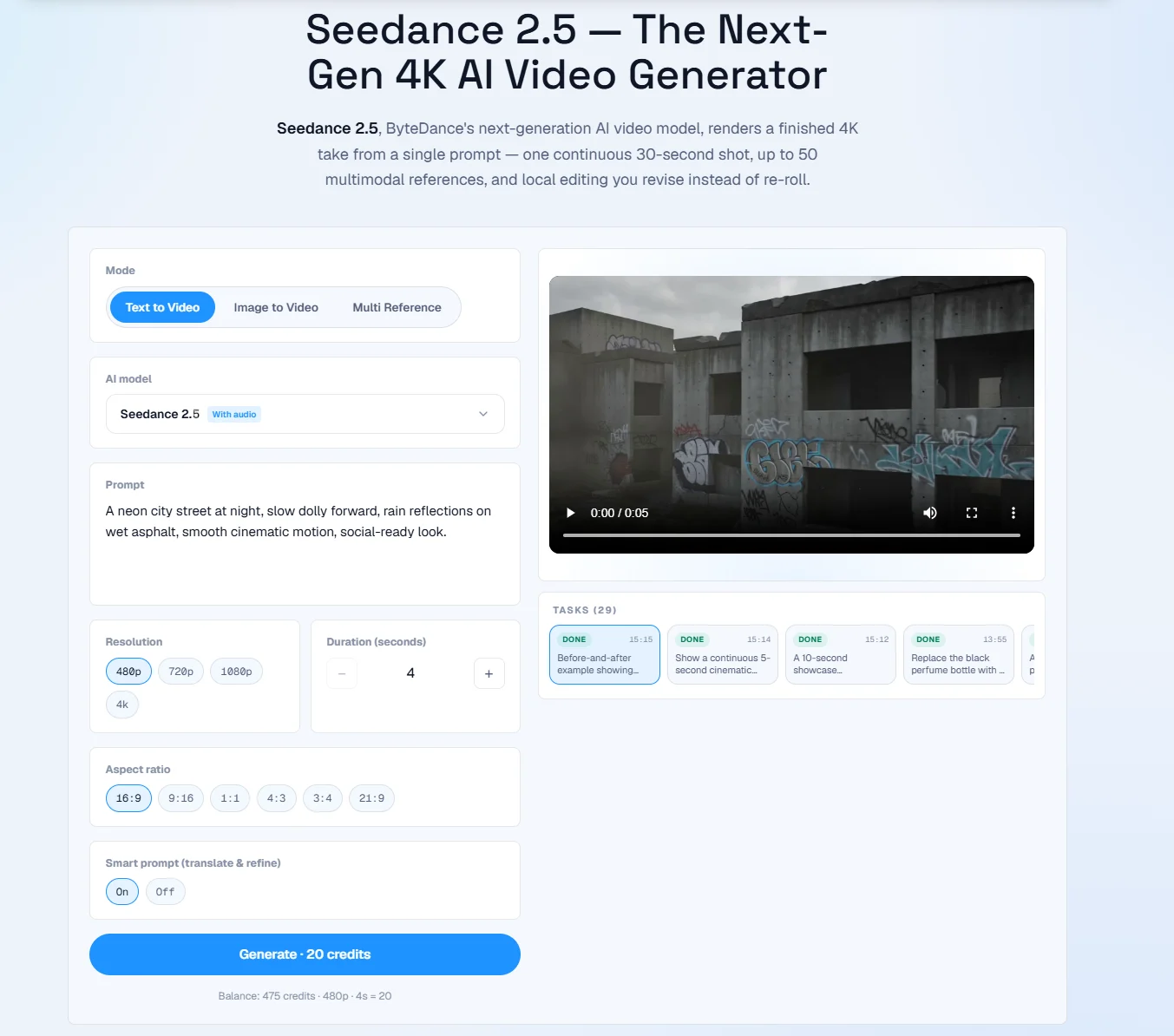
Open the generator workspace
Find the prompt editor, reference upload area, generation settings, and preview/export panel. Your prompt and references usually have the biggest impact on the result.
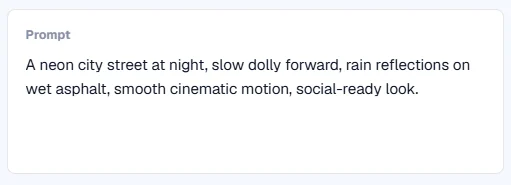
Write your prompt
Describe the scene like a film director. Name the subject, setting, action, camera move, lighting, mood, and output quality.
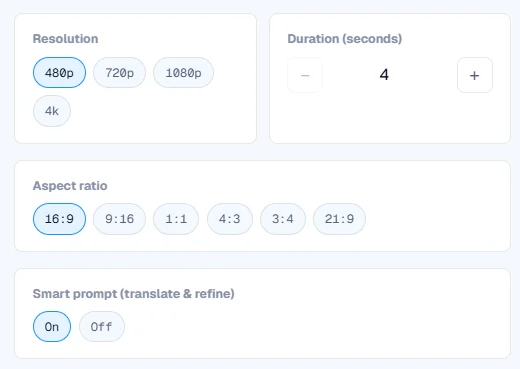
Configure generation settings
Pick a format before generating. Start with practical defaults, then experiment with other formats for mobile and social platforms.

Generate the first version
Treat the first generation as a draft. Ask whether the direction is correct before deciding whether to regenerate or refine.
Example prompt
Luxury skincare bottle standing on polished marble.
Morning sunlight through large windows.
Camera slowly circles around the product.
Water droplets move naturally.
Elegant luxury mood.
Commercial advertising.
Ultra realistic.
Native 4K.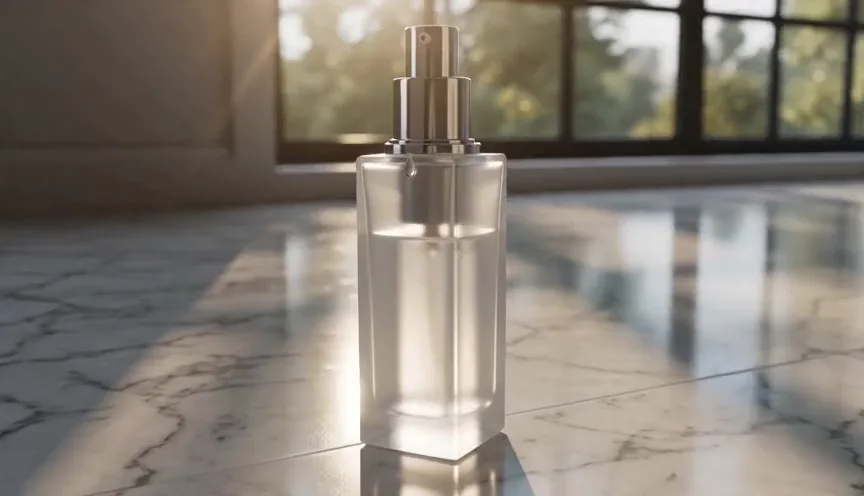
Product ad
Real Example: Product Advertisement
A luxury skincare commercial with stable product proportions, natural reflections, smooth camera movement, and premium lighting.
Luxury skincare bottle standing on polished marble.
Morning sunlight through large windows.
Camera slowly circles around the product.
Water droplets move naturally.
Elegant luxury mood.
Commercial advertising.
Ultra realistic.
Native 4K.Method 2: Animate Images with Image-to-Video
Image-to-Video transforms a still image into a moving sequence while preserving the original composition. Compared with Text-to-Video, this workflow gives you more control because the initial image already defines subject, colors, and layout.
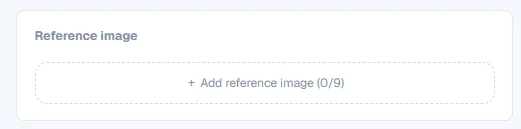
Step 1 - Upload a high-quality image
Choose a clear, high-resolution image with good lighting, sharp details, a clean background, and clear subject separation.
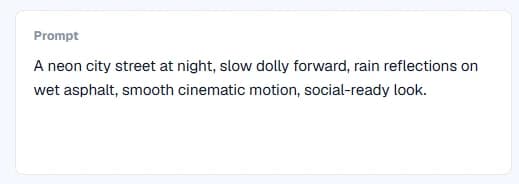
Step 2 - Describe the motion
The uploaded image defines appearance. Your prompt should focus on motion, camera, and lighting rather than repeating the subject description.
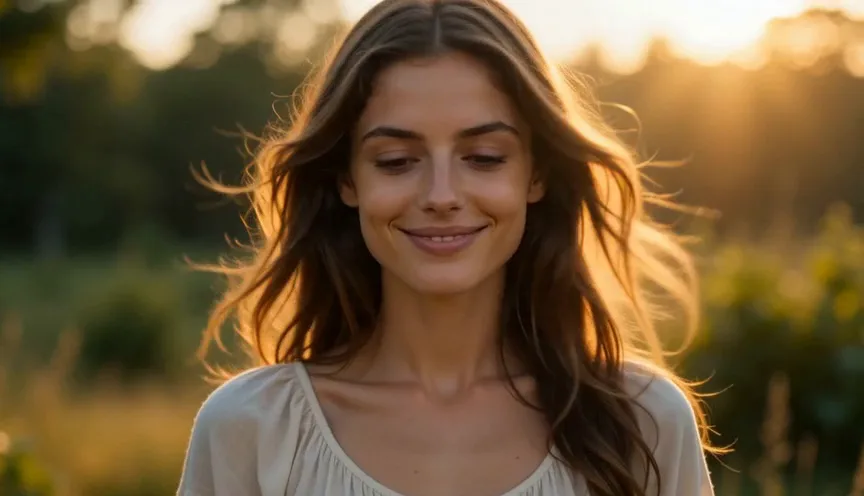
Real Example: Portrait Animation
Portrait
Real Example: Portrait Animation
A still portrait becomes a soft cinematic introduction while preserving identity, hair motion, lighting, and natural facial movement.
Animate the supplied portrait.
The subject smiles naturally before looking toward the camera.
Soft wind gently moves her hair.
Golden-hour sunlight.
Slow cinematic push-in.
Ultra realistic.Method 3: Create More Consistent Videos with Multiple References
One of the biggest upgrades in Seedance 2.5 is support for up to 50 multimodal references. Instead of relying entirely on text prompts, references can define character identity, product details, environment, lighting, and overall visual style.
- Character references
- Front portrait, side profile, three-quarter portrait, full body, and facial close-ups.
- Product references
- Front view, side view, packaging, logo, materials, and brand colors.
- Environment references
- Modern interiors, hotels, landscapes, cities, architecture, and lighting mood.
- Style references
- Camera style, color grading, film look, editorial mood, luxury ads, or animation style.
Professional Prompt Templates
These templates are designed for common production scenarios. Use them as a framework, then replace the subject, environment, lighting, and camera movement with your own creative direction.
Template
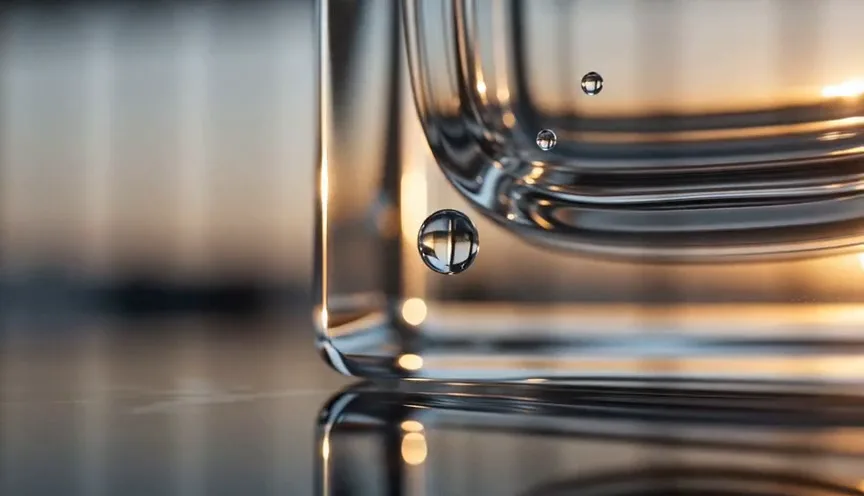
Product Advertisement
A repeatable product prompt for glossy ecommerce, skincare, and luxury landing page visuals.
Luxury skincare bottle standing on polished black marble.
Morning sunlight through floor-to-ceiling windows.
Camera slowly performs a clockwise orbit.
Tiny water droplets slide across the glass surface.
Elegant luxury mood.
Commercial photography.
Ultra realistic.
Native 4K.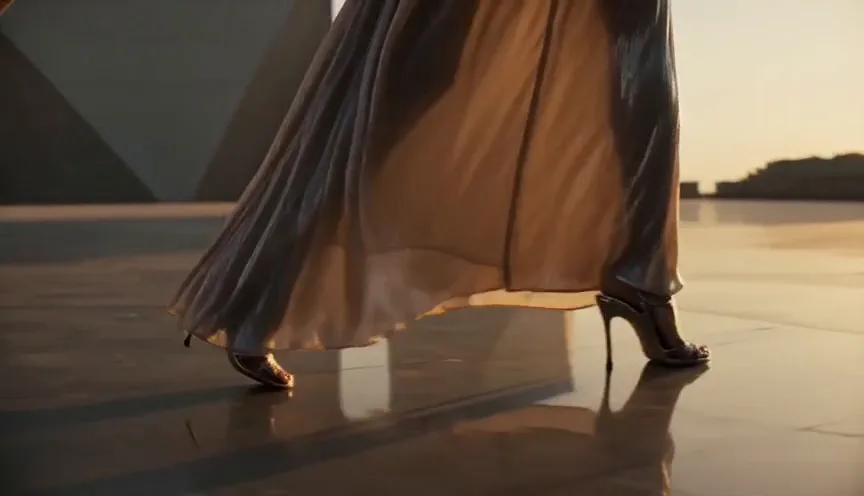
Template
Fashion Campaign
A fashion campaign prompt for editorial movement, wind, golden-hour lighting, and steady tracking shots.
A fashion model walks confidently through a modern architectural plaza.
Soft golden-hour lighting.
Flowing fabric moves naturally in the wind.
Steadicam tracking shot.
Luxury editorial photography.
Ultra realistic.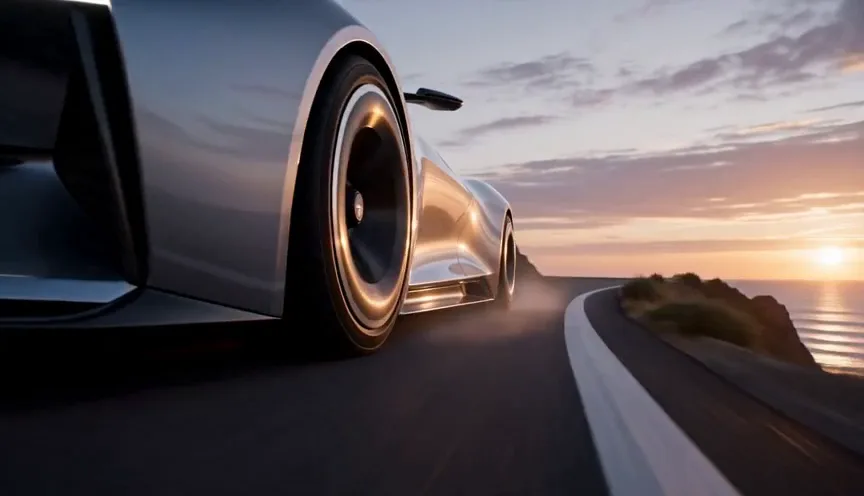
Template
Automotive Commercial
A vehicle prompt for coastal road motion, low tracking camera, drone transition, and premium reflections.
A futuristic electric sports car drives along a coastal highway at sunrise.
Low tracking camera follows the vehicle.
Dynamic reflections move across the bodywork.
Smooth drone transition into a close-up.
Premium automotive commercial.
Native 4K.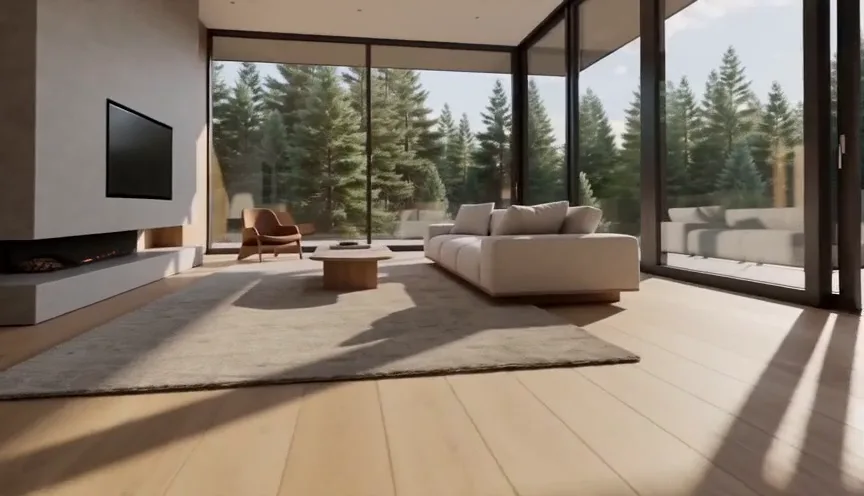
Template
Architecture Visualization
An interior and real-estate prompt for villa walkthroughs, warm light, and a controlled reveal.
Modern Scandinavian luxury villa surrounded by pine trees.
Warm afternoon sunlight enters through floor-to-ceiling windows.
Camera slowly walks through the living room before revealing the outdoor terrace.
Minimalist interior.
Architectural photography.
Ultra realistic.
Native 4K.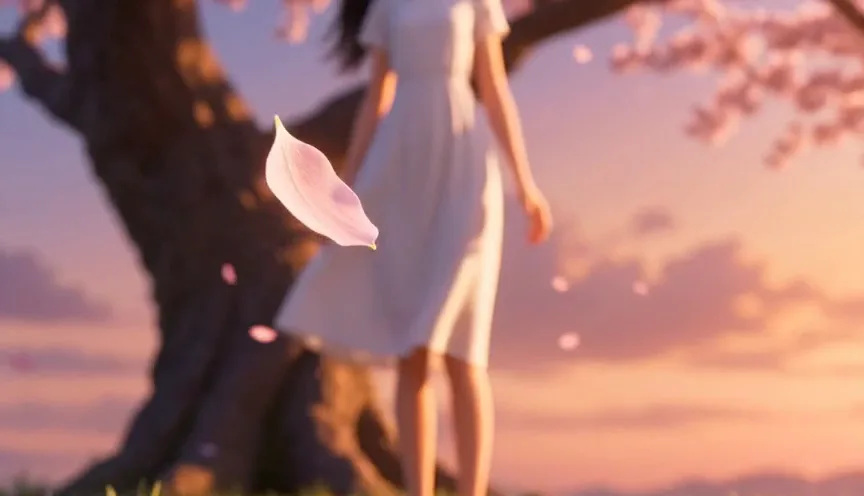
Template
Anime Cinematic Scene
A feature-film anime prompt for character showcases, petals, wind, and cinematic dolly motion.
Anime heroine standing beneath blooming cherry blossom trees.
Gentle spring breeze moves her hair and clothing.
Pink petals float through the air.
Slow cinematic dolly shot.
Golden sunset lighting.
Feature-film animation quality.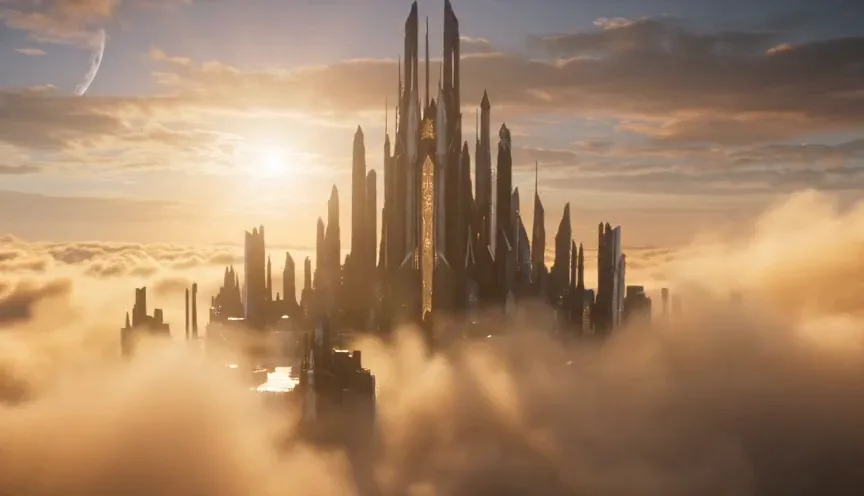
Template
Fantasy Movie Trailer
A fantasy trailer prompt for floating cities, aerial establishing shots, ships, waterfalls, and epic atmosphere.
Ancient floating city above the clouds.
Massive waterfalls cascade into the sky below.
Flying ships travel between towering stone structures.
Wide aerial establishing shot transitions into a slow orbit.
Epic fantasy atmosphere.
Ultra detailed.
Native 4K.Common Mistakes Beginners Make
Seedance 2.5 is easier to use than many AI video generators, but beginners often make the same mistakes that reduce video quality or waste credits.
Writing extremely short prompts
Beautiful girl, cinematic, 4K.
Better approach: Describe the environment, action, camera movement, lighting, and mood so the scene has enough direction.
Uploading poor reference images
Blurry screenshots, compression, cropped faces, or conflicting styles reduce output quality.
Better approach: Use high-resolution references with clean lighting, clear subjects, and a consistent visual direction.
Mixing too many styles
Anime + Pixar + realistic + oil painting + cyberpunk creates conflicting instructions.
Better approach: Choose one primary style, such as cinematic realism, luxury commercial, anime feature film, or editorial fashion.
Forgetting camera instructions
Without a camera move, the model decides how to frame and move through the scene.
Better approach: Specify one move: slow dolly in, orbit shot, tracking shot, crane movement, wide establishing shot, or macro close-up.
Ignoring lighting
Generic phrases like beautiful lighting are hard to translate into predictable visuals.
Better approach: Use specific phrases such as golden-hour sunlight, soft studio lighting, volumetric rays, overcast daylight, or neon reflections.
Trying to do everything in one prompt
Walking, running, flying, smiling, dancing, and spinning camera in one prompt creates unstable motion.
Better approach: Focus on one clear action and one camera movement. Simple scenes usually produce cleaner videos.
Regenerating the entire video
Starting over wastes time and credits when only one object or region needs a change.
Better approach: Use local editing for product color, logo replacement, unwanted objects, or clothing changes.
Skipping the first review
Accepting or rejecting the first generation too quickly hides what actually needs adjustment.
Better approach: Review character consistency, motion quality, camera path, lighting, and composition before another run.
Troubleshooting Guide
If results do not match expectations, change one variable at a time. This makes it easier to understand what improved the result and what made it worse.
- If the output is generic, add environment, action, camera, and lighting.
- If identity drifts, improve reference quality and keep visual style consistent.
- If motion looks unnatural, reduce the prompt to one primary action and one camera move.
- If lighting feels flat, use a specific phrase such as golden-hour sunlight or soft studio lighting.
- If a small detail is wrong, use local editing instead of regenerating the full clip.
- If the render is expensive, draft short and low before moving to native 4K.
Frequently Asked Questions
Is Seedance 2.5 beginner-friendly?
⌄
Yes. The interface is straightforward, and beginners can generate good results with simple prompts. Learning how to structure prompts and use references will significantly improve output quality.
Should I choose Text-to-Video or Image-to-Video?
⌄
Choose Text-to-Video if you are creating a scene from scratch. Choose Image-to-Video if you already have a character, product, illustration, or photograph that you want to animate.
How many reference images should I use?
⌄
There is no fixed number. Simple projects often work well with one or two references. For commercial work, using multiple references generally improves consistency.
Can I use Seedance 2.5 for commercial projects?
⌄
Yes. It is especially suitable for product advertising, ecommerce marketing, architectural visualization, fashion campaigns, filmmaking, and branded content where visual consistency is important.
What is the best prompt format?
⌄
Use the structure Subject, Environment, Action, Camera, Lighting, Mood, and Quality. This format gives Seedance 2.5 a clear production brief instead of a random keyword list.
Why doesn't my generated video look cinematic?
⌄
The most common reasons are missing camera movement, weak lighting description, poor references, or mixed visual styles. Improving these areas usually works better than simply making the prompt longer.
Can I edit a generated video?
⌄
Yes. Local editing allows you to modify specific areas without regenerating the entire sequence, which is useful for product updates, branding changes, and client revisions.
How long does it take to master Seedance 2.5?
⌄
Most beginners can understand the basic workflow within a few hours. Producing consistently high-quality commercial videos takes more practice with prompt writing, reference preparation, and scene planning.
Does using more references always improve quality?
⌄
Not necessarily. More references help only when they are consistent. Mixing conflicting styles or poor-quality images can reduce output quality.
What's the best way to improve my results?
⌄
Start with a clear goal, use high-quality references, write structured prompts, review the first generation carefully, and refine with local editing instead of starting over.
Key Takeaways
- Always define your project goal before writing a prompt.
- High-quality references are just as important as good prompts.
- Use a structured prompt format instead of random keywords.
- Describe camera movement and lighting clearly.
- Review the first result before regenerating.
- Use local editing whenever possible to save time and credits.
- Keep one consistent visual style throughout the project.
- Practice with small projects before moving on to complex commercial productions.
Final Conclusion
Seedance 2.5 is not just an AI video generator. It is a workflow for moving from idea to finished video more efficiently. Its combination of Text-to-Video, Image-to-Video, multimodal references, local editing, and native 30-second generation makes it useful for quick concept videos and polished commercial production.
If you are just getting started, focus on the fundamentals: write clear prompts, use strong references, generate a first draft, review carefully, and refine instead of restarting. These habits help you create more consistent, cinematic, and professional AI videos while saving time and generation costs.
Start creating
Turn your first prompt into a finished clip
Open the Seedance 2.5 generator, choose a workflow, and test a short draft before you commit to a full native 4K output.